Guide: Using Real Wii Remotes in Dolphin
Tip: Sync Wiimote Button Hotkey
RetroDECK has a built-in hotkey for pressing the Dolphin Sync Wiimote button (Alt + W) if you get disconnected in Steam Input. It can also be accessed from some controller's radial menu systems.
Hardware Prerequisites
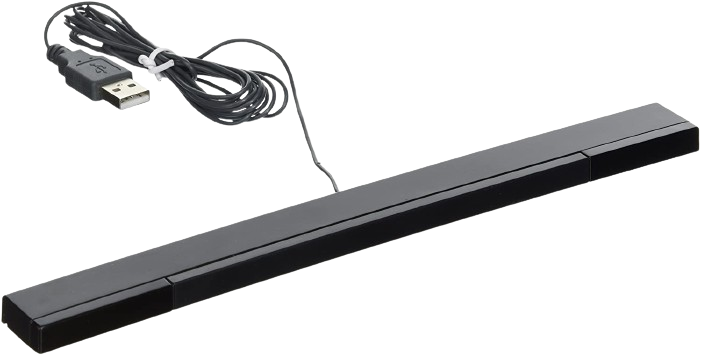
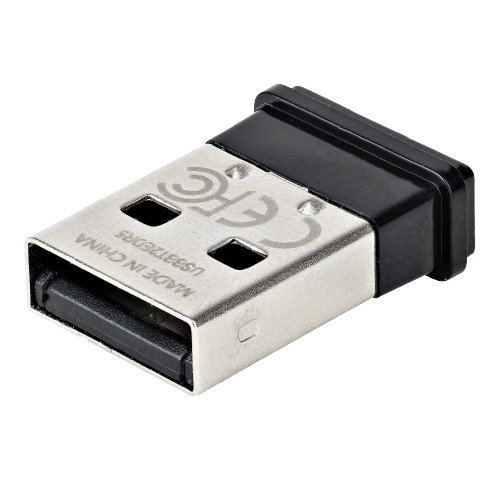
- A Wii Sensor Bar alternative (wireless or wired).
- A Linux compatible Bluetooth dongle or built-in Bluetooth adapter.
Mod: Wii bluetooth adapter to USB
For hardware mod enthusiasts, you can buy a Bluetooth adapter spare part from a Wii console and wire it as a USB Bluetooth adapter for better compatibility.
How to wire a Wii's Bluetooth Module to a PC USB Port
Information: Third Party Wii Remotes
Many third party Wii Remotes lack native Linux support, but several groups are working on it.
- They may work with Bluetooth Passthrough mode in Dolphin.
- They may or may not remember pairing with the Bluetooth adapter, requiring synchronization for each game.
Sources:
xwiimote-ng github - Fork of xwiimote
Related Issues:
Steam Deck Tips: Real Wii Remotes
- Play docked, connected to a monitor/TV, with a separate Bluetooth dongle attached to the dock.
- Set a sudo password for the Steam Deck.
- Connect a keyboard/mouse to the dock while setting up.
- Sit close to the Steam Deck when pairing the Wiimotes.
-
Configure Wiimotes in
Desktop Modefirst, then switch toGame Modewhen everything is working.- Open Dolphin from the Configurator.
- Make all the settings changes to connect the Wiimotes.
- Launch a game from
Desktop Modedirectly in Dolphin. - If pairing works and the Wiimotes connect and control the game fine in
Desktop Mode, it will work inGame Modewhen launched from RetroDECK.
How-to: Use a Real Wii Remote - Method 1: Emulate Wii's Bluetooth Adapter
This method works only with the Official Wii Remote controller and is the easiest method.
Step 1: Open Dolphins Controller Settings

Open RetroDECK Configurator → Open Emulator → Dolphin → Options → Controller Settings.
Step 2: Change the Settings
Under Emulate the Wii's Bluetooth adapter:
- Change the values of Wii Remote dropdown lists from
Emulated Wii RemotetoReal Wii Remote. - Enable the following checkboxes:
Connect Wii Remotes for Emulated ControllersContinuous Scanning
Step 3: Syncing the Wiimotes
- Connect the Wiimote by pressing the
Sync Buttonwhen a game is launched. - Reconnect every time when launching a new game.
- If everything works, re-pairing should be quick with the press of the
Abutton without needing to press theSync Buttonagain.
Use a Real Wii Remote - Method 2: Bluetooth Passthrough
This method works with both 3rd party and official Wiimotes. It is more complex and has some downsides.
🛑 Warning 🛑
- This method makes the Bluetooth adapter unusable for other devices while playing Wii games.
- No other devices can connect to it except Wiimotes, meaning all other devices will disconnect.
- It is recommended to have a backup input method like a wireless keyboard or a controller with a dongle/cable.
Source: Dolphin Wiki: Bluetooth_Passthrough
Step 1: Find Your Vendor and Product IDs
First you need to find our your Vendor ID Product ID for the Bluetooth adapter you want to use.
- Open a terminal window.
- Type
lsusb. - It will display all connected USB or BUS devices.
Example:
Bus 001 Device 003: ID 0bda:5650 Realtek Semiconductor Corp.
Bus 001 Device 004: ID 8087:0025 Intel Corp. Wireless-AC 9260 Bluetooth Adapter
ID 8087:0025 Intel Corp. Wireless-AC 9260 Bluetooth Adapter is the Bluetooth Adapter in this example. The ID 8087:0025 left value is the Vendor ID while the right is Product ID. In this example: Vendor ID is 8087 and Product ID is 0025.
Step 2: Create the rules file
You will need root privileges for this.
- Open a terminal and type the following command, replacing
Vendor IDandProduct IDrespectively:
sudo echo 'SUBSYSTEM=="usb", ATTRS{idVendor}=="Vendor ID", ATTRS{idProduct}=="Product ID", TAG+="uaccess"' | sudo tee -a /etc/udev/rules.d/52-dolphin.rules > /dev/null
From the example above, the result should look like this:
sudo echo 'SUBSYSTEM=="usb", ATTRS{idVendor}=="8087", ATTRS{idProduct}=="0025", TAG+="uaccess"' | sudo tee -a /etc/udev/rules.d/52-dolphin.rules > /dev/null
- Reload udev rules with: sudo udevadm control --reload-rules.
- Take out and reinsert the Bluetooth adapter or reboot if a built-in was used.
Step 3: Enable Bluetooth Passthrough in Dolphin
Open RetroDECK Configurator → Open Emulator → Dolphin → Options → Controller Settings.

Change Bluetooth type:
- From
Emulate the Wii's Bluetooth adaptertoPassthrough a Bluetooth Adapter
Enable the following checkboxes:

Connect Wii Remotes for Emulated ControllersContinuous Scanning
Step 4: Syncing the Wiimotes
- Connect the Wiimote when a game is launched.
- Reconnect every time when launching a new game.
- Press
1and2together on the Wiimote or theSync Button(under the backplate) when launching a game. - Sometimes, press the
Sync Buttonon the Emulated Wii in the Dolphin Interface. RetroDECK has a built-in shortcut for this (Alt + W), accessible from the Steam Input Radial Menu system.
Extra: Troubleshooting and Tips
- Sit close to the device during initial pairing.
- Pairing may take a while, especially with third-party Wiimotes. Try multiple times with the
Sync Button+Sync Wiimote. - To play with normal controllers again, change back to
Emulate the Wii's Bluetooth adaptersetting andEmulated Wii Remote. - If the udev rules created in Step 2 are incorrect and Dolphin cannot get Bluetooth access, it will display an error message and crash. Ensure the file in
/etc/udev/rules.d/52-dolphin.rulesand its content are correct.